3D Print Job Scheduling: Plan Jobs Across Your Printers

A queue for every FDM 3D printer: start a job now, at a set time or after the jobs already waiting, and see when each printer is free again. Built for Bambu Lab, Prusa and Klipper machines, not for paper print shops.

Scheduling is part of PRO, and every new account starts with 14 days of PRO, no credit card.
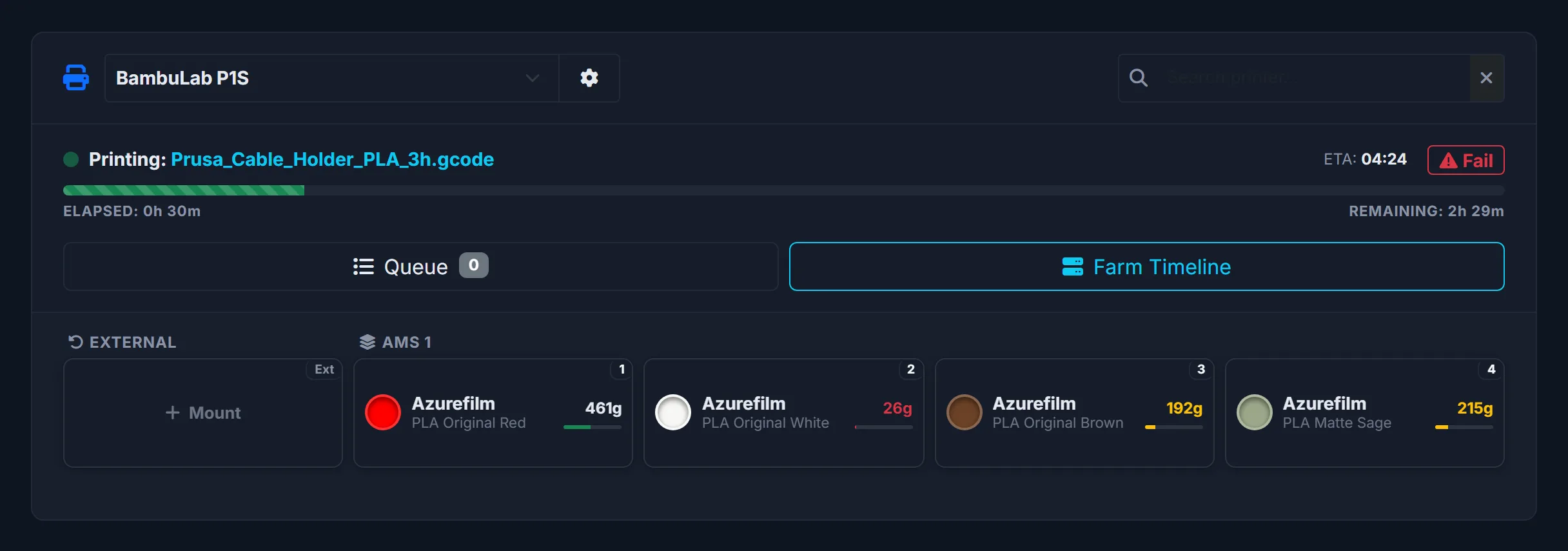
3D Print Manager printer view: a running job with elapsed and remaining time, the printer queue and the Farm Timeline button
From the live demo: the running job, time left, the printer's queue and the Farm Timeline.
Bambu Lab, Prusa, Klipper Queued jobs land inside working hours (your own hours on FARM) English, Deutsch, Hrvatski

How planning a job works

Add the job

Pick the printer and the spools, then start it now, at a set time, or at the end of that printer's queue.

Catch doubles

If the same job is already running or waiting on any printer, you are asked before a second batch goes in.

Adjust

Change the start time or cancel a job; the printer's queue and its free-again time follow.

Fail or finish

A failed print returns its unused filament to the spool and can go back in the queue with one click.

What you get, by plan

FeaturePROFARM
Queue
Queue per printer
Up to 5 printers
Farm-ready
Start now, at a set time or after the queue
Yes
Yes
Warning before a duplicate batch
Yes
Yes
Failed print back in the queue, filament back on the spool
Yes
Yes
Queued jobs inside working hours
Default hours
Your own hours
Farm
Farm Timeline across printers
No
Yes
Jobs linked to work orders
No
Yes
A spool reserved for a job
No
Yes

yes partly or with limits no

Job scheduling FAQ

Is this for 3D printers or for print shops?
For FDM 3D printers such as Bambu Lab, Prusa and Klipper machines. It is not a scheduler for paper, offset or large-format print shops.
Is scheduling free?
Scheduling is part of PRO, and every new account starts with 14 days of PRO, no credit card. The Farm Timeline across all printers and work orders are on the FARM plans.
Does it send jobs to my printers?
No. You plan when a job runs; you still start it from your slicer or printer app. 3D Print Manager never starts, stops or sends a job to a printer.
What happens to a failed print?
Mark it as failed and the unused filament goes back to the spool; you can put the same job back in the queue with one click.
Can I change the plan later?
Yes. Change a job's start time or cancel it, and the printer's queue follows.

Related 3D print workflows

Plan the next print on every printer

Every new account starts with 14 days of PRO, no credit card.